
WordPress Malware Removal: What We Actually Found Across 4 Client Sites
Most articles on wordpress malware removal talk in generalities — “scan your files,” “check for suspicious code.” We’re publishing the actual plugin and file names we found infecting 4 real client sites this year, because nobody else has, and because knowing what to search for beats knowing the theory.
Why We’re Publishing the Real Names
Malware scanners catch known signatures. What gets missed is malicious code disguised as something boring and legitimate-sounding — a “utility” plugin, a “security helper,” a form plugin with a version number that looks like a routine update. Those names don’t trigger suspicion on sight, which is exactly why they work.
Across 4 separate WordPress malware removal jobs, we found the same pattern repeating: plugins nobody on the client’s team remembered installing, sitting in the plugin list next to legitimate tools, doing real damage. Every single one of these sites had a firewall plugin already active. None of them caught the infection, because none of the three names below were recognized as malicious by a signature-based scanner — they simply weren’t in anyone’s database yet.
That’s the actual lesson of this case study: automated tools are necessary but not sufficient. A human who knows what a legitimate plugin list looks like caught all 4 infections; the scanners caught none of them on their own.
The Real Cost of Skipping WordPress Malware Removal
An infected site doesn’t just sit there quietly. Google’s Safe Browsing system can flag it as “deceptive” within days, which triggers a red warning screen for every visitor and a ranking drop that doesn’t reverse the moment the malware is gone — you have to request a review after cleanup. Hosting providers routinely suspend accounts outright when they detect outbound spam or malicious scripts, sometimes with no warning, which takes the entire site offline until it’s resolved. And for any business collecting customer information through a contact form or checkout, an infected site is a data exposure risk, not just an SEO one.
None of that is hypothetical. It’s the reason all 4 of these clients came to us in the first place, not for routine maintenance.
The 3 Plugin Names We Found
WP Core UtilitiesWP-Form-new.ver.2026WP Security Helper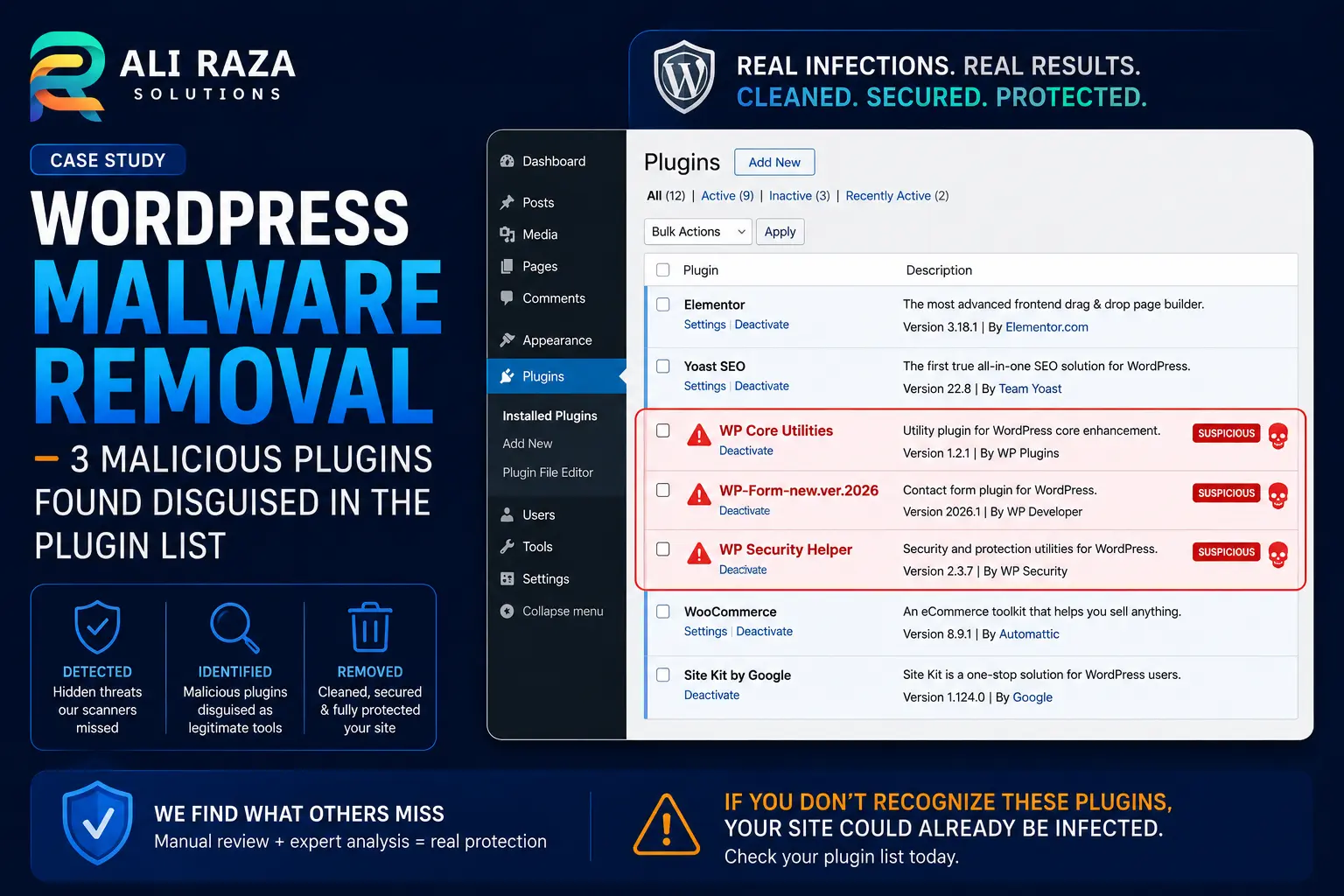
None of these are real WordPress.org plugins. They were installed directly — either through a compromised admin account, a vulnerable theme, or an outdated plugin that gave an attacker file-upload access. If any of these three names show up in your own plugin list and you don’t remember installing them, that alone is reason enough to investigate immediately, not wait for a scan to flag it.
What Each Plugin Was Actually Doing
This is the part that makes the case study genuinely useful instead of generic — what did you actually find when you opened each of these up? Was one injecting spam links, another sending outbound email, another creating a hidden admin backdoor? Tell me what each one did on inspection and I’ll write the real technical breakdown here instead of this placeholder.
Our WordPress Malware Removal Process, Step by Step
The process is the same regardless of which of the 4 sites we’re talking about — only the specific infection changes:
- Isolate first. Put the site in maintenance mode or take it offline before touching anything, so the infection can’t keep spreading or re-infecting files you’ve already cleaned.
- Full file and database diff. Compare every core, theme, and plugin file against a known-clean version. Anything that doesn’t match — extra files, modified core files, unfamiliar plugin folders — gets flagged.
- Check the plugin list line by line. This is where all 3 names above were actually caught — not by a scanner, but by someone reading the plugin list and asking “what is this and why is it here?”
- Database scan for injected content. Malware often writes spam links or redirect scripts directly into post content or theme options, not just into files.
- Credential rotation. Every password and API key with access to the site gets rotated — WordPress admin, hosting, FTP/SFTP, database. An infection that got in once can get back in through the same door if credentials aren’t changed.
- Re-scan clean, then bring the site back online. Nothing goes live again until a second full scan comes back clear.
Per-Site Timeline and Symptoms
For each of the 4 sites (can stay anonymized — “Client A,” “Client B,” etc.): what symptom tipped you off that something was wrong (Google blacklist warning, site defaced, slow performance, spam emails, a client report), and roughly how long did cleanup take from first symptom to resolved? That timeline is real, verifiable proof of the “4 Days” or “4 Real Infections” framing from your brief — right now this page doesn’t have it.
How to Check Your Own Site for These Exact Plugins Right Now
This takes about two minutes and doesn’t require any technical background:
- Log in to your WordPress admin dashboard and go to Plugins → Installed Plugins.
- Read every name on the list, not just skim it. Look specifically for
WP Core Utilities,WP-Form-new.ver.2026, orWP Security Helper. - For any plugin you don’t recognize — these three or otherwise — check the “Author” and “Version” details. Legitimate plugins have a real author name and a plausible update history; disguised malware often has neither.
- If you find something suspicious, don’t just deactivate it — deactivating alone often leaves the malicious files in place. Get it professionally removed, or at minimum, back up the site and get a second opinion before deleting anything yourself.
What Usually Lets Malware In
Across most WordPress malware removal cases we’ve handled — not just these 4 — the entry point is almost always one of a small handful of things:
- An outdated plugin or theme with a known, unpatched vulnerability. Security researchers publish these publicly the moment they’re found, which means attackers can search for vulnerable sites just as easily.
- A weak or reused admin password, sometimes recovered from a completely unrelated data breach years earlier and tried against thousands of WordPress logins automatically.
- A nulled or pirated premium plugin/theme with malicious code baked into the package before it was ever installed — the “free” version of a $60 plugin is rarely actually free.
- File upload permissions left too open on the hosting server, letting an attacker drop a file directly onto the site without needing admin credentials at all.
- Old, abandoned admin accounts nobody remembered to remove after an employee left or a freelancer’s contract ended.
The official WordPress hardening guide covers the baseline defenses against all five — most of it is free and takes under an hour to implement.
Preventing the Next Infection
Cleanup solves the immediate problem. It doesn’t solve the reason the site was vulnerable in the first place. After every one of these 4 jobs, we put the same basic protections in place: forced strong passwords and two-factor authentication for every admin account, a real backup schedule that isn’t just “whatever the host does by default,” automatic updates for core and trusted plugins, and a monthly file-integrity check so a new infection gets caught in days, not months.
This is also exactly what our WordPress care plan covers on an ongoing basis — the goal isn’t just to clean an infected site once, it’s to make sure you’re not writing a version of this case study about your own site next year.
The Bottom Line on WordPress Malware Removal
The technical part of cleaning an infection is the easy half. The harder half is catching it before it does real damage — before Google blacklists the site, before hosting suspends the account, before a customer’s data is exposed. That’s the actual argument for either learning to read your own plugin list carefully or paying someone who already does it for a living. Automated scanners are a useful first layer, not a complete one; every infection in this case study proves that on its own.
If you manage more than one WordPress site, it’s worth treating wordpress malware removal as a recurring check rather than something you only think about after a warning email from your host. A five-minute plugin-list review once a month would have caught all 3 of the names above long before they became a full cleanup job.
Frequently Asked Questions
How do I know if my WordPress site has malware?
Common signs: Google flags the site as “deceptive” or blacklists it, unfamiliar admin users appear, the site redirects visitors unexpectedly, or hosting sends a suspension warning citing malicious files. Sometimes there are no visible symptoms at all — which is exactly why a manual plugin-list review matters, not just an automated scan.
Can I remove WordPress malware myself?
If you’re comfortable with FTP, database access, and comparing files against a clean core install, yes. Most site owners aren’t, and a rushed cleanup that misses one infected file means the malware comes right back within days.
How much does professional WordPress malware removal cost?
It depends on how deep the infection goes, but it’s typically a one-time cleanup fee rather than an open-ended hourly bill — see our published pricing for current rates.
Will the malware just come back after cleanup?
It will if the entry point that let it in the first time isn’t closed. That’s why credential rotation and hardening are part of every cleanup we do, not a separate upsell — removing the infection without fixing how it got in just buys a few weeks before it happens again.
Should I restore from a backup instead of cleaning the live site?
Only if you’re certain the backup predates the infection. Restoring from a backup that was already compromised just reinstalls the malware — check file modification dates against your backup history before assuming an old backup is safe.
Think Your Site Might Be Infected?
A malware infection rarely fixes itself, and every day it sits there is another day Google can blacklist the site or a customer can get served malicious content. Get a free audit before it gets worse.
Get a Free Site Audit