
Squarespace to WordPress Migration: 9 Critical Things That Can Break
A practical migration guide for content, images, design, forms, products, URLs, redirects, SEO and integrations when moving from Squarespace to self-hosted WordPress.
Published: August 17, 2026 · Approximate reading time: 13 minutes
Start the migration plan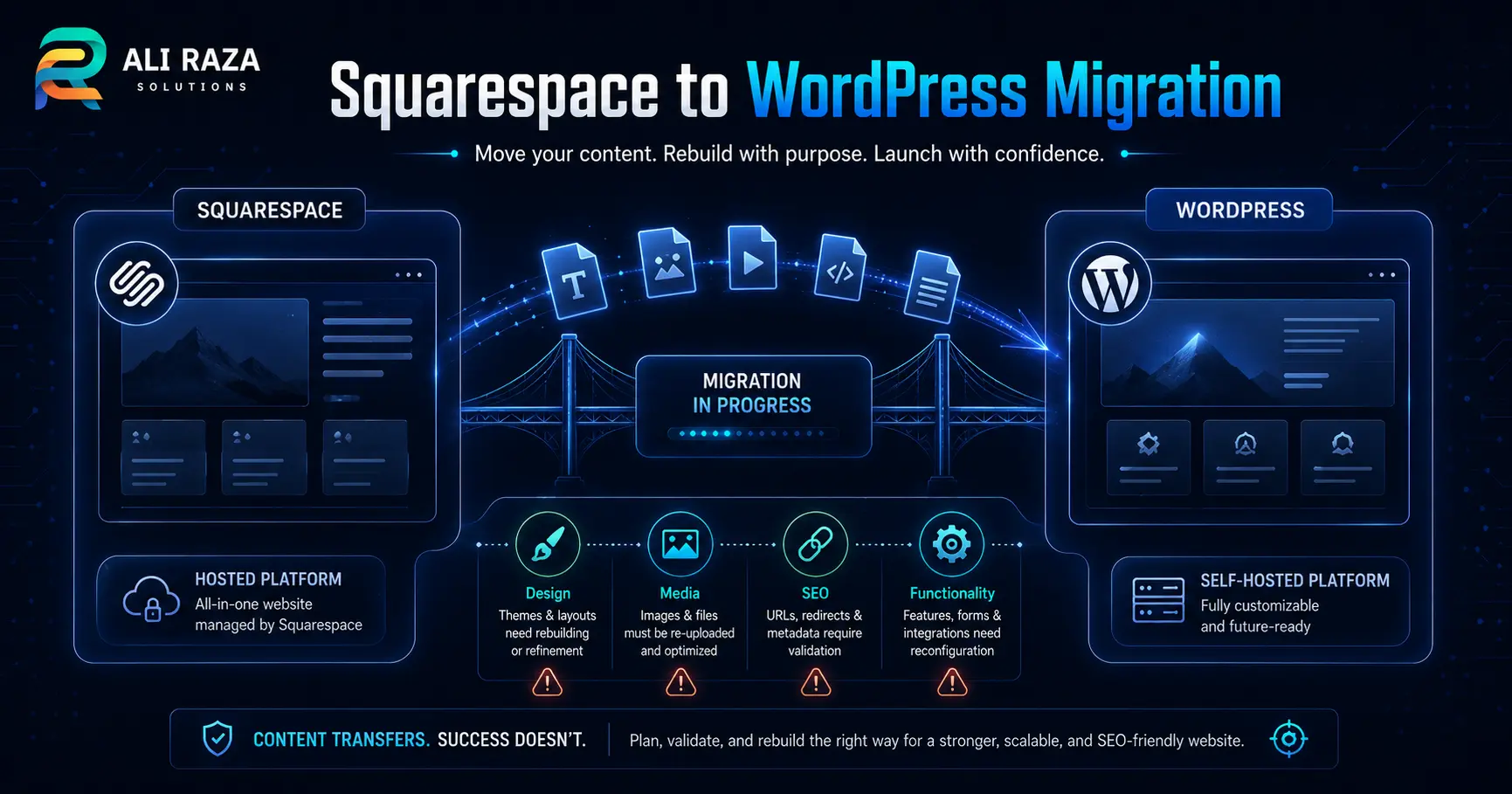
Squarespace to WordPress Migration: The Short Answer
A Squarespace to WordPress migration is not a one-click copy of the complete site. Squarespace can export certain compatible content to a WordPress-format XML file, but the design system, style settings, custom CSS and multiple Squarespace content types do not travel through that export. Images also need special verification because self-hosted WordPress imports can leave references to the original Squarespace files instead of copying them.
The safest approach is to treat the project as several connected workstreams: content transfer, design rebuilding, media verification, functionality replacement, URL mapping, SEO migration and final launch QA. Keep the original Squarespace site available until the new WordPress site has been checked thoroughly.
9 Critical Squarespace to WordPress Migration Breakpoints
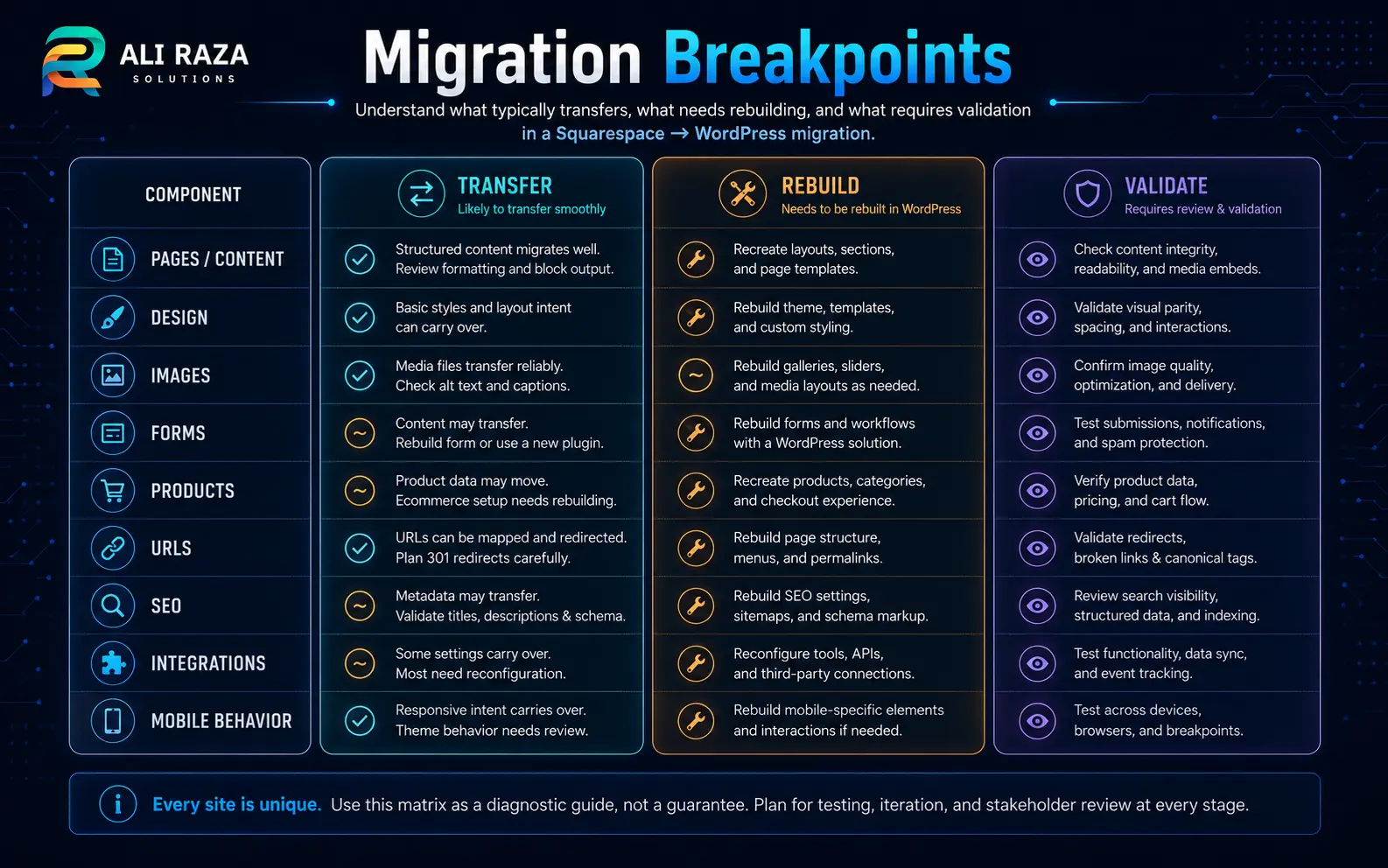
For a Squarespace to WordPress migration, classify every important website component as something that can transfer, something that must be rebuilt, or something that requires validation. That prevents an imported page count from being mistaken for a complete migration.
Design and layout
Squarespace template styling does not become a WordPress theme. Headers, footers, spacing, fonts, colors and responsive layouts need to be recreated.
Images and media
Visible images may still be referenced from Squarespace. Confirm that required files are actually present in the WordPress Media Library.
Forms and automations
Contact forms, newsletter flows, confirmations, notifications and connected automations should be rebuilt and tested in WordPress.
Products and commerce
Store pages are not part of the normal site XML export. Product migration needs its own data and WooCommerce or other commerce plan.
Special content types
Portfolio, cover, calendar, store and several other Squarespace page types do not export through the standard XML workflow.
URLs
Different permalink structures can create 404s and broken external links unless old and new destinations are mapped deliberately.
SEO signals
Titles, descriptions, canonicals, headings, internal links and indexability need a migration review rather than an assumption that they transfer cleanly.
Integrations and scripts
Analytics, pixels, embeds, booking systems, email tools and custom scripts must be reinstalled or replaced and then tested.
Mobile behavior
Recreated layouts can behave differently on WordPress, so responsive navigation, forms, images and conversion paths require device-level QA.
What Squarespace Actually Exports to WordPress
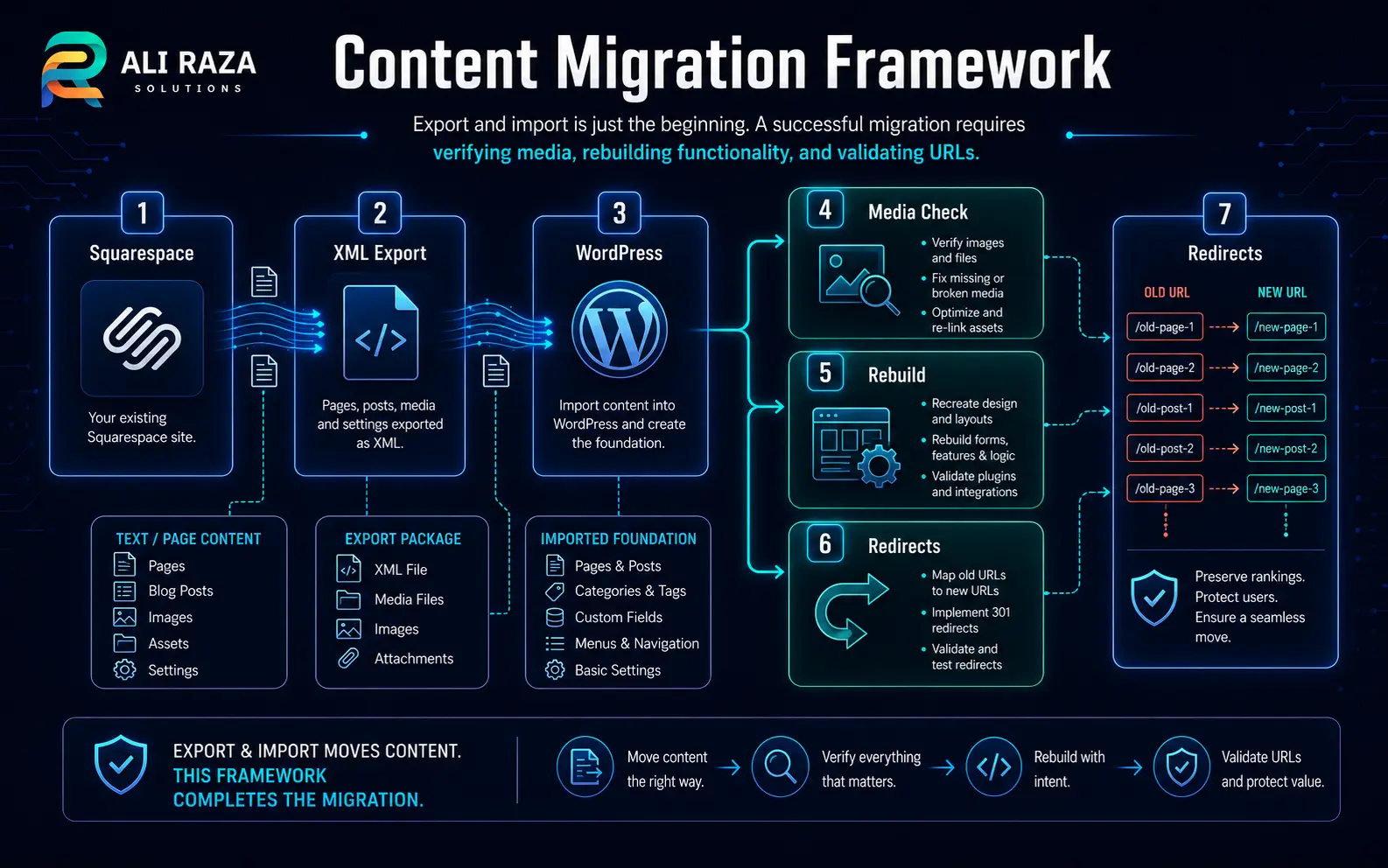
In a Squarespace to WordPress migration, Squarespace’s current export tool creates an `.xml` file intended for importing compatible content into WordPress. Its documentation lists layout pages, one blog page with posts, text blocks, image blocks, minimal text structure from some other blocks, and certain version 7.0 gallery pages as exportable.
The same documentation says other page types—including portfolio and store pages—do not export through this workflow. It also excludes page-specific headers, footers and sidebars, more than one blog page, dropdowns, audio blocks, product blocks, video blocks, drafts, style settings and custom CSS.
| Component | Standard XML export | Migration action |
|---|---|---|
| Layout pages | Supported | Import, then review formatting and links. |
| One blog | Supported | Import posts, categories and comments where available, then validate URLs. |
| Text and image blocks | Supported with caveats | Verify formatting and confirm images are locally stored. |
| Additional blogs | Not included | Plan a separate migration or manual reconstruction. |
| Store / product pages | Not included in site XML | Use a separate commerce migration workstream. |
| Styles and custom CSS | Not included | Rebuild in the WordPress theme or page-builder system. |
See Squarespace’s current site export documentation and WordPress’s content importing documentation for the underlying platform workflows.
The Squarespace Design Does Not Become a WordPress Theme
A Squarespace to WordPress migration moves selected content, not the Squarespace template engine. The WordPress site still needs a theme, block-based design system, page builder or custom theme that reproduces or improves the intended visual experience.
For a Squarespace to WordPress migration, start with the design rules that matter to the brand: header behavior, navigation, page width, typography, colors, spacing, buttons, cards, footers and responsive breakpoints. Rebuild those components intentionally instead of trying to mimic every Squarespace-generated wrapper.
This is also the point where a migration can become an improvement rather than a clone. If the old site has weak mobile navigation, confusing calls to action or duplicated layouts, preserve the content and SEO intent while simplifying the interface. Ali Raza Solutions handles this kind of rebuild through its WordPress development service.
Images Can Be the Hidden Squarespace to WordPress Migration Risk
Media deserves a separate checklist because an image can appear correctly in the browser while still being served from the old platform. Squarespace warns that when its XML is imported into a self-hosted WordPress site with WordPress Importer, the process may retain reference links instead of copying every image file.
Before launch in a Squarespace to WordPress migration, inspect the WordPress Media Library and the source URLs used by important pages. Confirm that required images, documents and downloadable assets are hosted where you expect. If an important file still points to the Squarespace domain or CDN path, move it deliberately and update the content reference.
Forms, Products and Business Functionality Need Their Own Plan
A Squarespace to WordPress migration should inventory functionality before anyone exports content. A visually similar page is not complete if its enquiry form, booking system, newsletter connection, ecommerce flow or confirmation email no longer works.
For forms in a Squarespace to WordPress migration, document every field, required option, recipient, confirmation message, spam control and connected CRM or email workflow. Rebuild the form in WordPress and submit test entries from a logged-out browser. Check both the visitor confirmation and the business notification.
Commerce is a separate workstream. Squarespace’s general XML export excludes store pages and product blocks, while Squarespace provides a separate CSV export for physical and service products. Its current product-export documentation also notes that some product information—such as customer reviews, featured images, product image alt text and variant images—is not included in that CSV.
If the WordPress destination uses WooCommerce, map product fields, images, variants, taxes, shipping, payment methods and order emails before launch. WordPress documents a WooCommerce CSV importer, but the source data still needs to match the destination structure.
For the source limitations, see Squarespace’s product CSV export guide.
Protect URLs, Redirects and SEO During the Migration
For a Squarespace to WordPress migration, build the URL map before switching the domain. Record the old Squarespace URLs, decide which WordPress URLs can remain identical, and map every changed high-value address to the closest relevant replacement.
For a Squarespace to WordPress migration, Squarespace’s own migration SEO guidance recommends recording old URLs and using 301 redirects when URL structures change. That principle still applies when the destination is WordPress: preserve matching slugs where practical and redirect permanent changes rather than allowing old links to fall into 404 pages.
Keep matching URLs
If a useful page can retain the same path without creating structural problems, preserving it can simplify the migration.
Map changed URLs
Use a spreadsheet with old URL, new URL and redirect status. Avoid redirecting unrelated pages to the homepage merely to remove 404s.
Recheck SEO elements
Review page titles, meta descriptions, headings, canonicals, indexability, image alt text and structured data on the WordPress version.
Update internal links
Replace old absolute Squarespace links with final WordPress destinations so visitors and crawlers do not rely on unnecessary redirects.
Squarespace’s current SEO migration guidance specifically recommends tracking old URLs, matching slugs when possible and setting up 301 redirects for changed paths.
Ali Raza Solutions can combine the rebuild with technical SEO work when preserving landing pages, redirects and search visibility is part of the project.
Domain, DNS and Launch Timing Matter Too
A Squarespace to WordPress migration can be technically complete in staging and still fail at launch if the domain, DNS or email records are changed carelessly. Record the current DNS zone before editing anything, especially MX, SPF, DKIM or other mail-related records that are unrelated to the website host.
For a Squarespace to WordPress migration, build and test WordPress on a staging or temporary environment first. When the site is ready, point the domain to the new hosting environment using the chosen DNS method, verify HTTPS, and retest the public website from outside the administrator session.
Do not cancel the old Squarespace site merely because the domain now points elsewhere. Keep it available as a migration reference until images, files, redirects, forms and content have passed QA. Squarespace’s export guidance itself says the source site should be active for export and recommends canceling only after the import is successful.
Squarespace to WordPress Migration Launch Checklist
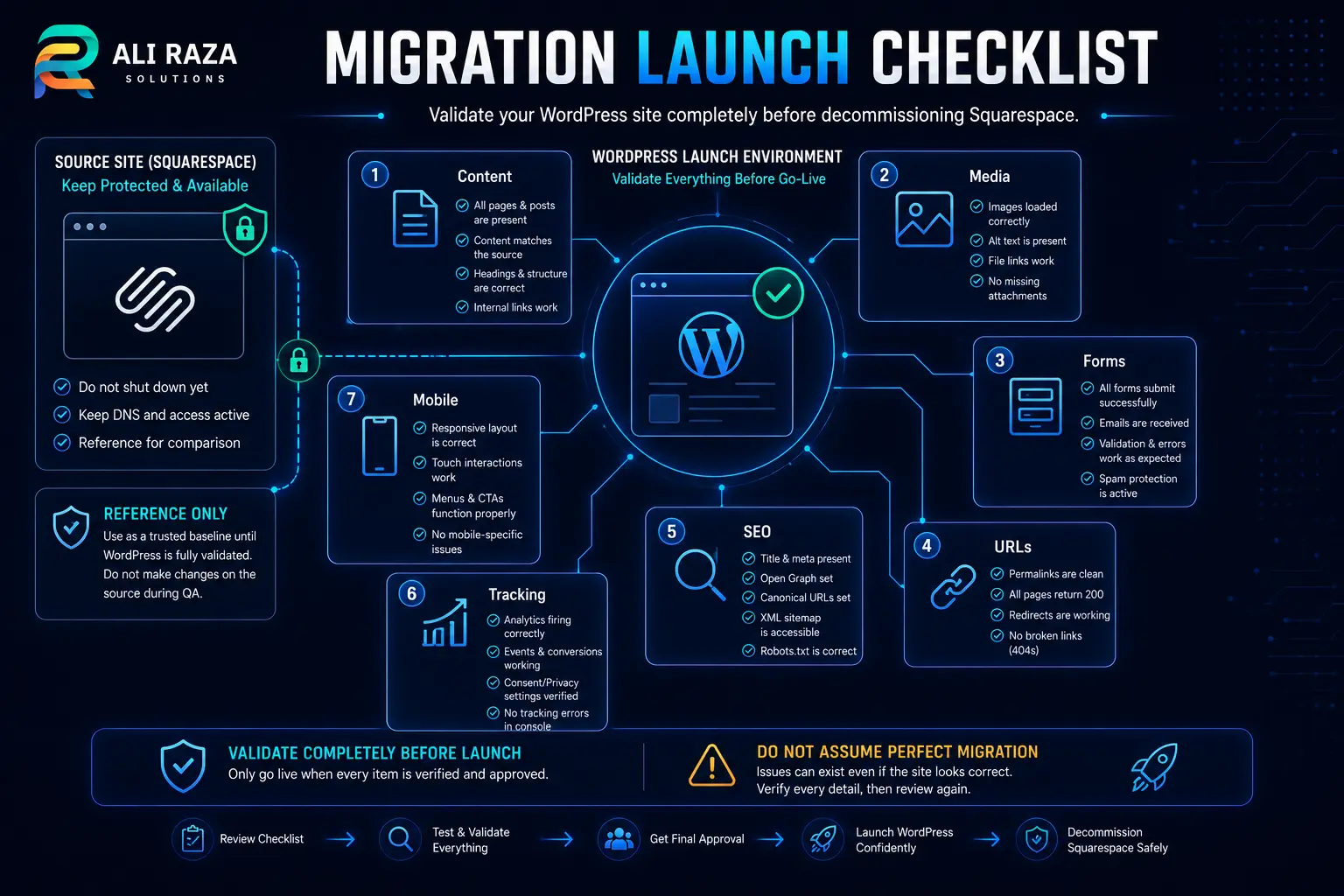
Before retiring the old platform, test the new site as a visitor, editor and search engine would encounter it. A Squarespace to WordPress migration is complete only when the important content and business functions work from the new environment without hidden dependencies on Squarespace.
- Priority pages and blog posts are present and formatted correctly.
- Required images and downloadable files are stored in the intended WordPress environment.
- Header, footer, navigation and responsive layouts work on mobile and desktop.
- Forms submit correctly and reach the intended inbox, CRM or automation.
- Products, variants and commerce workflows are tested if ecommerce is involved.
- Old URLs redirect to relevant new destinations where paths changed.
- Internal links point directly to final WordPress URLs.
- Page titles, meta descriptions, canonicals and indexability are reviewed.
- Analytics, pixels and conversion tracking are installed and tested.
- The site is crawled for 404s and old Squarespace-domain references.
- DNS and email records remain correct after the website cutover.
- The Squarespace source remains available until migration dependencies are cleared.
If the site is business-critical, a structured migration can reduce the risk of losing forms, media, search landing pages or conversion tracking during the cutover. Use the Ali Raza Solutions contact page to share the current Squarespace domain, required WordPress features, integrations and target launch window.
Frequently Asked Questions About Squarespace to WordPress Migration
These answers cover the most common migration questions before a Squarespace site is rebuilt on self-hosted WordPress.
Can Squarespace be transferred directly to WordPress?
Squarespace can export certain compatible content to a WordPress-format XML file, but the complete website does not transfer directly. Design, unsupported page types, functionality, media dependencies and SEO migration work still need separate handling.
What content exports from Squarespace to WordPress?
Squarespace currently lists layout pages, one blog page and its posts, text blocks, image blocks, some text from other blocks and certain version 7.0 gallery pages as exportable. Several other page and block types do not export through the standard XML workflow.
Does my Squarespace design transfer to WordPress?
No. Squarespace style settings and custom CSS are not included in its WordPress XML export. The WordPress site needs its own theme, block system, page builder or custom design implementation.
Will my Squarespace images move automatically?
Not reliably enough to assume they have moved. Squarespace warns that self-hosted WordPress imports may leave reference links to Squarespace images. Confirm important assets appear in the WordPress Media Library or move them manually before deactivating Squarespace.
Do Squarespace forms transfer to WordPress?
Do not assume Squarespace form configuration and connected workflows transfer through the content XML. Rebuild the required forms in WordPress and test fields, notifications, confirmations, spam controls and integrations before launch.
What happens to Squarespace products?
Store pages are not included in the normal Squarespace site XML export. Squarespace provides a separate product CSV export for physical and service products, but some product details and images are excluded, so ecommerce requires a separate migration and validation plan.
Will moving from Squarespace to WordPress hurt SEO?
A platform move can affect search visibility if URLs, content, metadata, internal links, indexability or redirects change incorrectly. Preserve useful URLs where practical, map changed paths, review SEO elements and monitor the new site after launch.
Do I need 301 redirects when moving to WordPress?
If a permanent Squarespace URL changes on WordPress, a 301 redirect to the most relevant replacement is normally appropriate. URLs that remain identical do not need a redirect simply because the platform changed.
When can I cancel my Squarespace website?
Cancel only after the WordPress site, media, files, forms, products, redirects, SEO settings, tracking and public-domain cutover have been validated. Keep the Squarespace source available until you are confident the new site no longer depends on it.

About Ali Raza Solutions
Ali Raza Solutions provides WordPress development, website maintenance, SEO and digital marketing services for businesses in the United States, United Kingdom and international markets.
Squarespace and WordPress features can change. Confirm current export/import behavior and test the specific site before canceling services, changing DNS or relying on an automated migration workflow.