

About Ali Raza Solutions
Ali Raza Solutions provides WordPress development, web development, SEO and website maintenance services for businesses in the United Kingdom, United States and international markets.
Why Is My WordPress Site Slow? 11 Proven Causes & Fixes
Why is my WordPress site slow? In most cases, the problem comes from one or more of these areas: underpowered hosting, missing caching, oversized images, inefficient plugins, a heavy theme, excessive JavaScript, database problems or third-party scripts.
The safest solution is not to install another speed plugin immediately. First, identify whether the delay is coming from your server, page resources, browser rendering or WordPress itself. Random optimization changes can hide the real issue or break important functionality.
This guide explains how to diagnose the problem, the eleven most common causes and the safest order in which to fix them.
- 11 common causes
- Core Web Vitals
- Safe diagnostic order
Why Is My WordPress Site Slow? Start With a Quick Diagnosis
If you are asking why is my WordPress site slow, use this table to match the visible symptom with the most likely cause and the first test to run.
| Symptom | Likely cause | First test |
|---|---|---|
| Every page is slow | Hosting, server response or missing caching | Test several pages while logged out |
| Homepage is slow but inner pages are faster | Large hero image, slider or third-party scripts | Review the homepage waterfall |
| Mobile is much slower than desktop | Large assets, excessive JavaScript or weak mobile optimization | Run a mobile PageSpeed Insights test |
| WordPress admin is slow | Plugin activity, database queries, cron jobs or limited server resources | Check hosting resource usage and plugin activity |
| Site becomes slow during traffic spikes | CPU, RAM, database or hosting limitations | Review server-resource graphs |
| WooCommerce cart or checkout is slow | Dynamic queries, external payment scripts or uncached database operations | Test cart and checkout separately |
| Pages shift while loading | Missing image dimensions, fonts, banners or dynamic widgets | Check CLS |
| Buttons respond slowly | Heavy JavaScript or long browser tasks | Check INP and main-thread activity |
| First screen appears late | Slow server, render-blocking assets or a large hero element | Check TTFB and LCP |
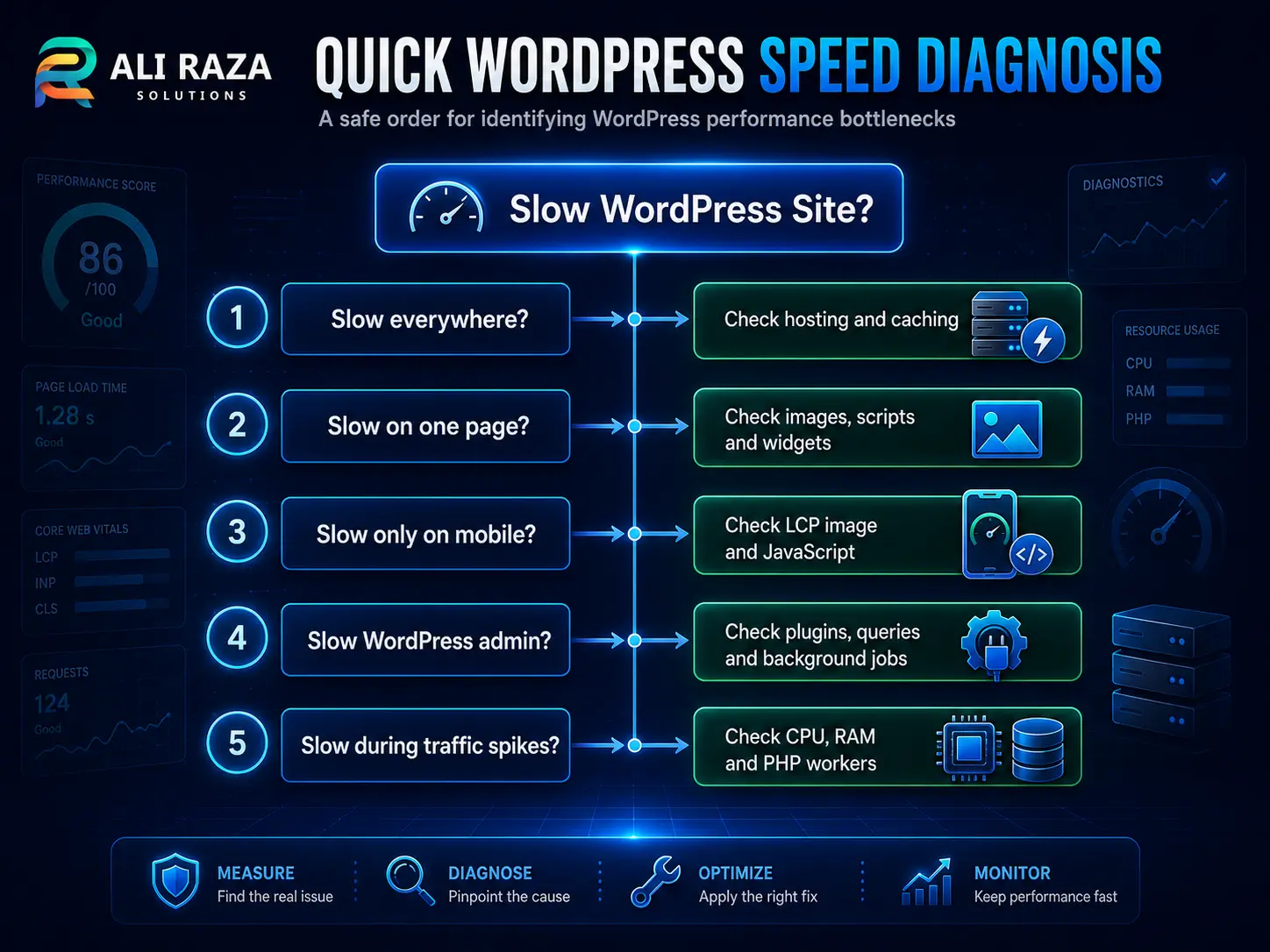
Google PageSpeed Insights reports page experience on mobile and desktop and provides recommendations for improving the tested page. Field measurements and controlled lab tests can differ because real users have different devices, networks, cached resources and interactions.
Why Is My WordPress Site Slow? Check the Right Metrics First
A single performance score does not explain the entire problem. Start with the three Core Web Vitals documented by Google:
- Largest Contentful Paint: how quickly the main visible content appears
- Interaction to Next Paint: how quickly the page responds to user interactions
- Cumulative Layout Shift: how stable the page remains while loading
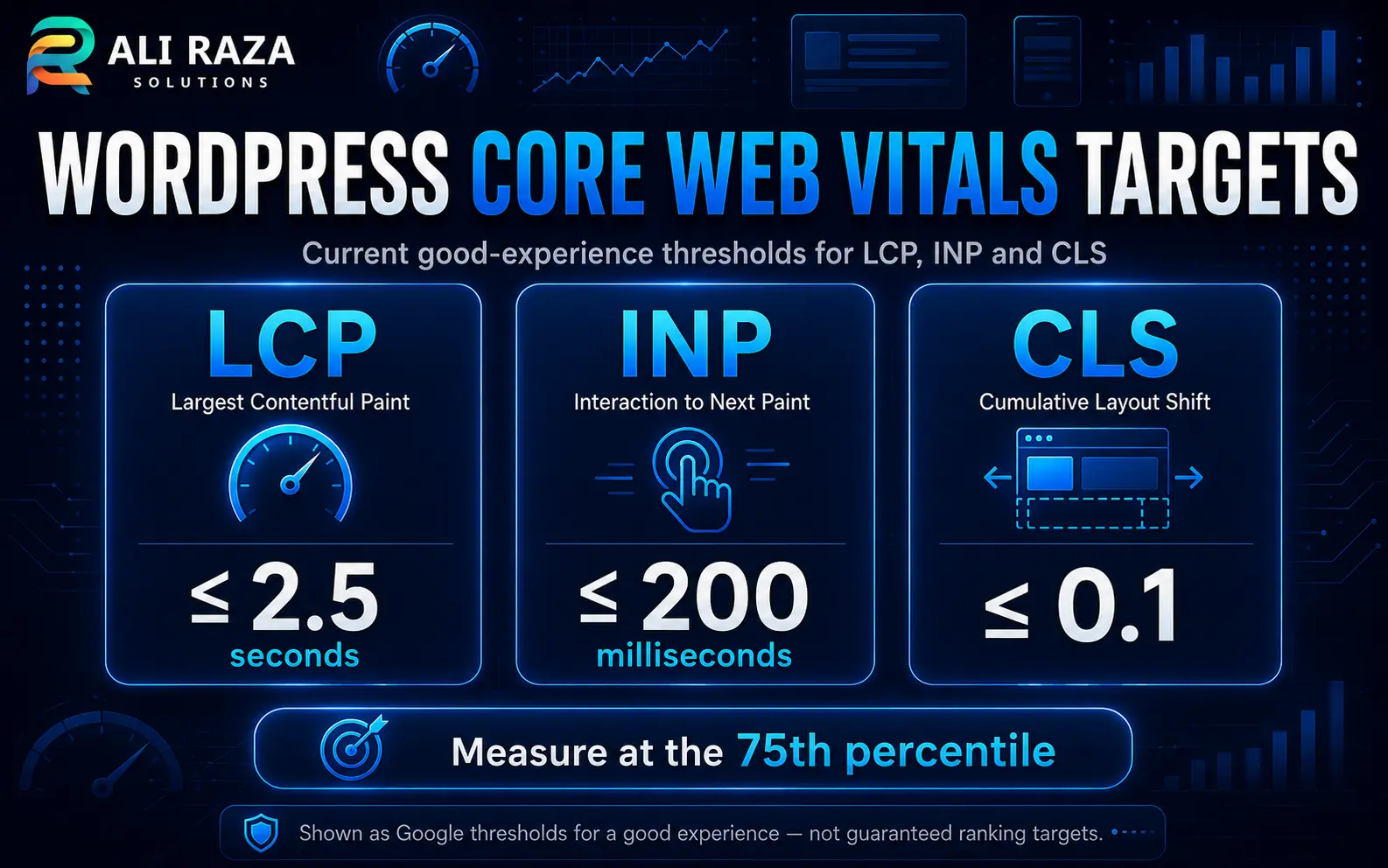
For a good user experience, aim for:
- LCP: 2.5 seconds or less
- INP: 200 milliseconds or less
- CLS: 0.1 or less
These targets should be met for at least 75% of page visits, separately across mobile and desktop traffic. They provide measurable evidence when diagnosing why is my WordPress site slow for real visitors.
Use PageSpeed Insights for Google field and lab data, GTmetrix for a detailed performance waterfall, and your hosting dashboard for CPU, RAM, PHP-worker and database information. GTmetrix is designed to show where a page is slow and which resources contribute to the delay.
Your Hosting Cannot Handle the Website
If you are asking why is my WordPress site slow and every page feels delayed, the hosting environment is one of the first areas to investigate. It affects how quickly WordPress can process PHP, query its database and return the initial HTML document.
Entry-level shared hosting may become slow when:
- CPU usage reaches its limit
- Available memory is low
- PHP workers are occupied
- The database server is overloaded
- Other accounts consume shared resources
- Traffic suddenly increases
- Automated bots repeatedly request pages
A hosting problem often affects the entire website rather than one image or page.
How to test it
Check:
- Time to First Byte
- Hosting resource graphs
- PHP error logs
- Slow-query logs
- Performance at busy and quiet times
- Performance when WordPress is logged out
Do not migrate hosting merely because one PageSpeed test is poor. First establish whether the server response is consistently slow across multiple pages and tests.
Page Caching Is Missing or Misconfigured
When someone asks why is my WordPress site slow even after basic optimization, missing or misconfigured caching is a common explanation. WordPress normally builds pages dynamically using PHP and database queries. Page caching stores a ready-made version that can be served without rebuilding the same page for every visitor.
WordPress’s official caching documentation explains how cached pages reduce repeated server processing and can improve performance.
Caching can still fail when:
- Two caching systems conflict
- Logged-in users bypass the cache
- The cache is cleared too frequently
- WooCommerce exclusions are incorrect
- A CDN serves an old version
- Mobile and desktop caches are misconfigured
- Server-level and plugin-level caching overlap incorrectly
How to fix it
Use one primary page-caching system and verify that public pages return cached responses. Test logged-out pages in a private browser window.
Do not cache sensitive or highly dynamic pages such as customer accounts, shopping carts and checkout pages without verifying the platform requirements.
Images Are Larger Than Their Display Size
For image-heavy pages, the answer to why is my WordPress site slow is often oversized or poorly delivered media. Large images are one of the most common reasons a visually simple page loads slowly.
Typical problems include:
- Uploading a 4,000-pixel photograph for a 700-pixel container
- Using PNG for ordinary photographs
- Missing WebP or another efficient format
- Loading desktop-sized images on mobile
- Lazy-loading the main hero image
- Loading multiple hidden slider images
- Using uncompressed background images
How to fix it
Resize each image close to its largest required display size. Compress it before uploading and use responsive image sizes.
Do not lazy-load the primary above-the-fold image when it is the page’s LCP element. Delaying the most important visible image can make the page appear slower even though lazy loading helps images further down the page.
Your Theme or Page Builder Loads Too Much Code
If a polished page still makes you ask why is my WordPress site slow, the theme or page builder may be loading more code than the design actually needs. A theme can look clean while loading large stylesheets, animations, icon libraries, fonts and JavaScript files.
Page builders may add:
- Nested containers
- Repeated CSS
- Unused widgets
- Animation scripts
- Multiple font files
- Large DOM structures
- Global assets on pages that do not need them
This does not mean Elementor, Gutenberg, Bricks or another builder is automatically slow. Performance depends on the theme, template structure, installed add-ons and how the page was built.
How to test it
Clone the website to staging and compare:
- The existing page
- A simplified version using the same builder
- A basic theme template
- A page with non-essential widgets disabled
Never switch the production theme merely for a quick test. Theme changes can affect templates, menus, widgets and custom functionality.
A Plugin Is Creating Excessive Work
In some cases, why is my WordPress site slow comes down to one inefficient plugin rather than the total plugin count. Ten well-written plugins can perform better than one poorly written plugin.
A plugin can slow WordPress by:
- Running database queries on every page
- Loading scripts globally
- Making external API requests
- Scheduling frequent background tasks
- Rebuilding data repeatedly
- Writing excessive logs
- Creating conflicts or errors
- Adding heavy frontend widgets
How to test it safely
Use a staging copy or a troubleshooting mode that disables plugins only for your session. Deactivate suspected plugins one at a time and repeat the same test.
Do not disable payment, security, backup or customer-facing plugins on a live business website without a recovery plan.
Too Much JavaScript Blocks the Browser
On highly interactive pages, why is my WordPress site slow is frequently answered by excessive JavaScript and blocked main-thread work. JavaScript is commonly used for menus, sliders, forms, analytics, chat widgets, tracking pixels, advertisements and animations.
The browser may become slow when:
- Large scripts download before useful content
- Several scripts perform the same job
- Long tasks block the main thread
- Third-party tools load immediately
- Unused scripts run on every page
- Multiple tracking tags fire together
Excessive JavaScript can particularly damage INP because users may click or tap while the browser is still busy processing other work. INP measures page responsiveness across user interactions.
How to fix it
Remove unnecessary scripts, load page-specific assets only where needed and delay non-essential third-party functionality.
Test forms, analytics, menus, cookie consent, advertising and conversion tracking after every optimization. A faster page that no longer records leads is not a successful result.
CSS and Fonts Delay Visible Content
If visible content appears late, why is my WordPress site slow may be tied to render-blocking CSS or font requests. Large stylesheets and external fonts can delay the initial page display.
Common issues include:
- Several font families
- Too many font weights
- Multiple icon libraries
- Unused page-builder CSS
- Render-blocking stylesheets
- Fonts loading from several domains
- Missing fallback fonts
- CSS generated for deleted widgets
How to fix it
Use fewer font families and weights, preload only genuinely critical fonts and remove unused CSS carefully.
Aggressive CSS removal can break responsive layouts, menus, popups or forms. Test the optimized version across mobile, tablet and desktop before deployment.
The Database Contains Slow Queries or Unnecessary Data
For stores and content-heavy websites, why is my WordPress site slow can be traced to inefficient database queries or unnecessary stored data. WordPress stores content, settings, users, orders, plugin data and temporary records in its database.
The database can become inefficient because of:
- Expired transients
- Large autoloaded options
- Excessive revisions
- Abandoned plugin tables
- Large WooCommerce session data
- Repeated failed scheduled jobs
- Inefficient search or filtering queries
- Plugins storing extensive logs
How to fix it
Create a full backup before database work. Identify the largest tables and slowest queries rather than deleting data blindly.
Routine cleanup may help, but a slow database query usually requires identifying which theme, plugin or custom function created it.
Third-Party Services Are Delaying the Page
When server metrics look healthy but you still wonder why is my WordPress site slow, third-party services may be delaying the browser. Your hosting may be fast while outside services remain slow.
Examples include:
- Live chat
- Review widgets
- Social feeds
- Advertising networks
- Heatmaps
- Embedded videos
- Analytics tools
- Meta Pixel
- Google Tag Manager
- External booking systems
- Maps
Chrome’s official performance guidance explains that third-party code can significantly affect loading performance and should be reduced or deferred where appropriate.
How to fix it
List every external domain loaded by the page. Remove unused integrations and delay non-essential widgets until interaction or consent.
Do not remove revenue, analytics or lead-tracking systems without confirming their business purpose.
A CDN or Geographic Setup Is Incorrect
For international traffic, why is my WordPress site slow may depend on distance from the origin server or an incorrectly configured CDN. A content delivery network can serve static files from locations closer to visitors. However, a poorly configured CDN may introduce:
- Extra redirects
- Cache misses
- Stale files
- SSL problems
- Duplicate optimization
- Incorrect HTML caching
- Broken image URLs
- Delayed cache purging
A CDN is most useful when visitors are geographically distant from the origin server or when the website serves many static resources.
How to fix it
Measure performance from the countries that matter to the business. Compare the origin and CDN versions, confirm cache-hit headers and test the website after purging all cache layers.
Background Jobs, Bots or Malware Consume Resources
When unexplained resource spikes make you ask why is my WordPress site slow, background jobs, aggressive bots or malware should be investigated. WordPress performs scheduled tasks for publishing, backups, email delivery, updates, WooCommerce processing and plugin maintenance.
Performance can decline when:
- Backups run during high-traffic periods
- WordPress cron fires too frequently
- Search bots crawl aggressively
- Login attacks generate repeated requests
- Malware runs hidden processes
- Failed tasks repeat continuously
- Security scans overlap with other jobs
- Import or synchronization processes remain active
How to fix it
Review access logs, scheduled actions, security logs and hosting-resource graphs. Move heavy maintenance jobs to low-traffic periods and investigate unexplained CPU or database activity.
Unexpected resource use should be treated as both a performance and security issue.
Why Is My WordPress Site Slow? What Should You Fix First?
To resolve why is my WordPress site slow without breaking important functionality, use this order:
- Create a complete backup.
- Test several pages on mobile and desktop.
- Identify whether the issue is server-side or browser-side.
- Check hosting resources and server response.
- Confirm page caching.
- Optimize the LCP image and above-the-fold content.
- Review scripts, plugins and third-party tools.
- Investigate database and background tasks.
- Retest forms, tracking and business functions.
- Deploy through staging where possible.
- Monitor real-user Core Web Vitals after deployment.
This order prevents a common mistake: making ten changes simultaneously and then not knowing which one fixed—or broke—the website.
Why Is My WordPress Site Slow? When to Hire a Specialist
Professional help is appropriate when the cause of why is my WordPress site slow remains unclear or when optimization changes could affect revenue, tracking or customer functionality:
- The website produces leads or sales
- Checkout or customer accounts are affected
- Speed changes repeatedly break the design
- The server reaches CPU or memory limits
- Core Web Vitals remain poor after basic optimization
- WordPress admin remains slow
- Tracking or forms stop working after optimization
- Malware or unexplained activity is suspected
- The site uses custom plugins or integrations
- You need reliable before-and-after reporting
Ali Raza Solutions provides WordPress development, performance work and website maintenance through an in-house team with direct communication. The agency serves businesses in Pakistan and international clients, including the UAE, UK and US.
Professional audit evidence
Request a Free WordPress Speed Audit
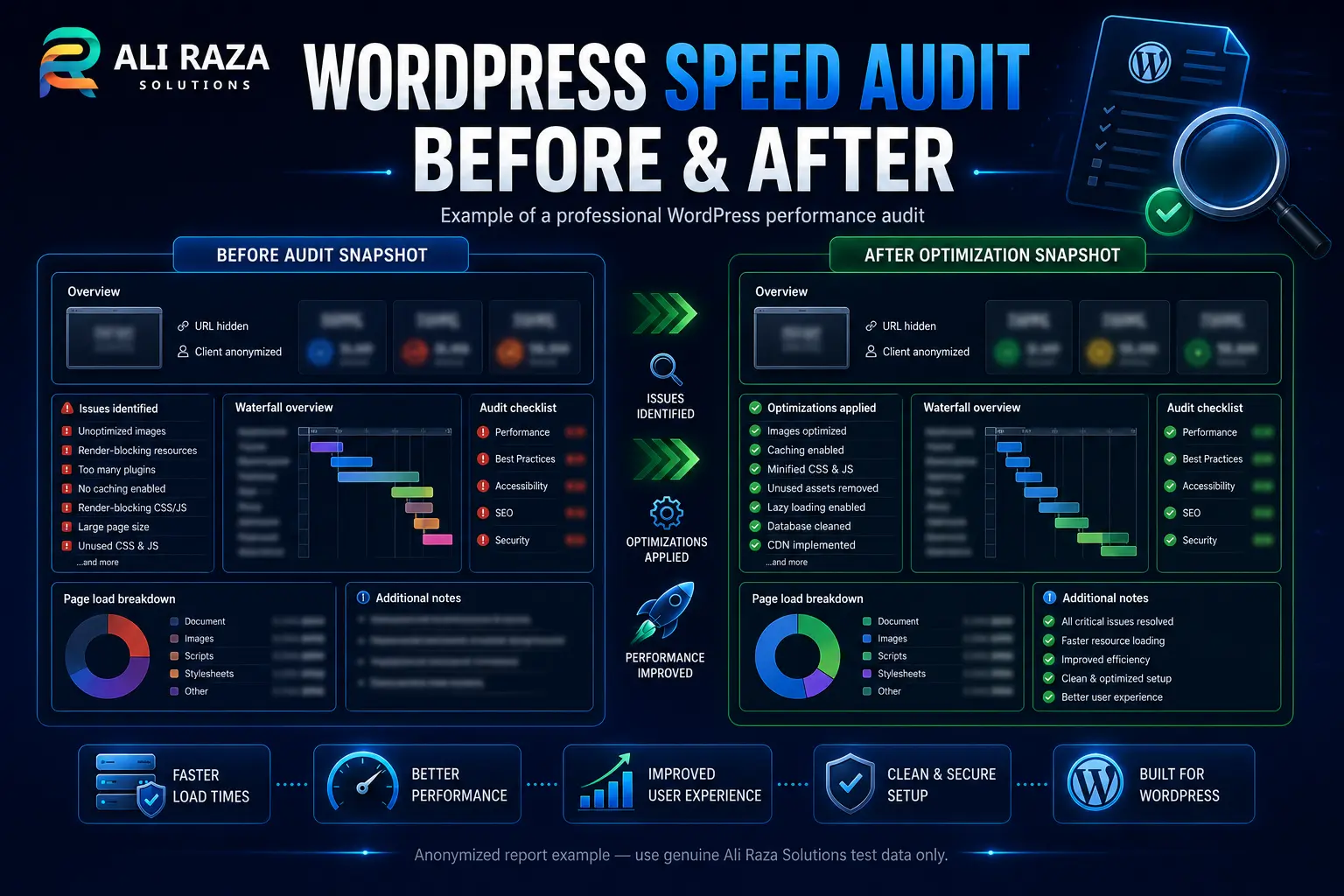
A proper speed audit should answer why is my WordPress site slow by identifying the real bottleneck before recommending hosting, plugins or redevelopment.
- PageSpeed Insights and Core Web Vitals
- Hosting and server response
- Themes and plugins
- Images and fonts
- JavaScript and CSS
- Database performance
- WooCommerce performance
- Tracking and third-party integrations
Get a clear explanation of what is slowing your WordPress website and which fixes are worth implementing.
Request My Free Speed AuditFrequently Asked Questions
Clear answers to the most common WordPress performance questions.
Why is my WordPress site slow even with a caching plugin?
Caching cannot fully compensate for overloaded hosting, heavy JavaScript, slow database queries, large images or third-party integrations. The cache must also be correctly configured and successfully serving the tested page.
Do too many plugins slow down WordPress?
Plugin quality and behavior matter more than the raw plugin count. One inefficient plugin can create more work than several lightweight plugins. Test plugins individually on staging instead of deleting them based only on quantity.
Why is my WordPress site slow only on mobile?
Mobile users may have slower connections and less powerful devices. Large images, excessive JavaScript, animations and heavy above-the-fold content are therefore more noticeable on mobile.
Why is WordPress admin slow but the public site is fast?
Public pages may be cached, while the WordPress dashboard remains dynamic. Slow admin performance can come from database queries, background tasks, plugin activity, external API calls or limited server resources.
Will improving WordPress speed guarantee higher Google rankings?
No. Performance contributes to user experience, but rankings depend on content relevance, quality, competition, authority and many other signals. Rank Math also states that a strong optimization score improves probability rather than guaranteeing rankings.
How often should I test WordPress performance?
Test after major theme, plugin, hosting, tracking or design changes. Business-critical sites should also monitor performance regularly so unexpected regressions are detected before they affect customers.