Elementor Broken After Update? 7 Essential Troubleshooting Steps
A practical diagnostic workflow for editor failures, broken styling, plugin conflicts and post-update errors—without changing several things at once.
Published: August 17, 2026 · Approximate reading time: 12 minutes
Jump to the troubleshooting steps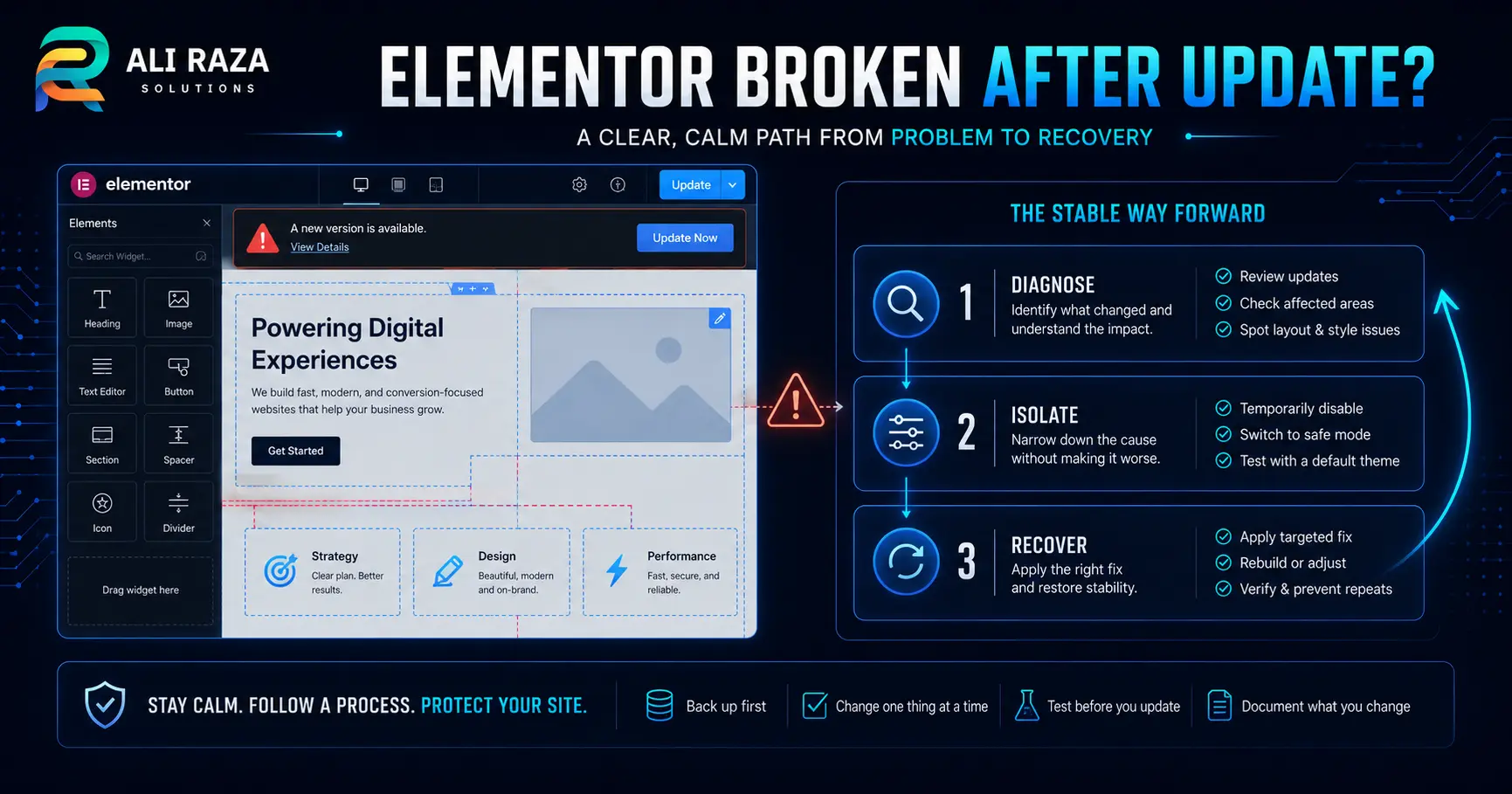
Elementor broken after update? Start by recording exactly what changed, verifying a usable backup, and reproducing the symptom before rolling anything back. Then clear relevant generated files and caches, use Safe Mode when the editor is affected, isolate plugins or the theme one at a time, and choose the least disruptive recovery path supported by the evidence.
An Elementor broken after update problem does not automatically prove that Elementor itself is the cause. The visible problem can come from a third-party add-on, the active theme, stale CSS, cached assets, an Elementor/Elementor Pro version mismatch, custom code, or a server-side error that appeared at the same time as the update.
7 Essential Fixes When Elementor Broken After Update Is the Problem
When Elementor broken after update is the immediate problem, work through the checks in a controlled order. If the site handles payments, bookings, ecommerce or business-critical leads, use staging or qualified support rather than repeatedly changing a live production site.
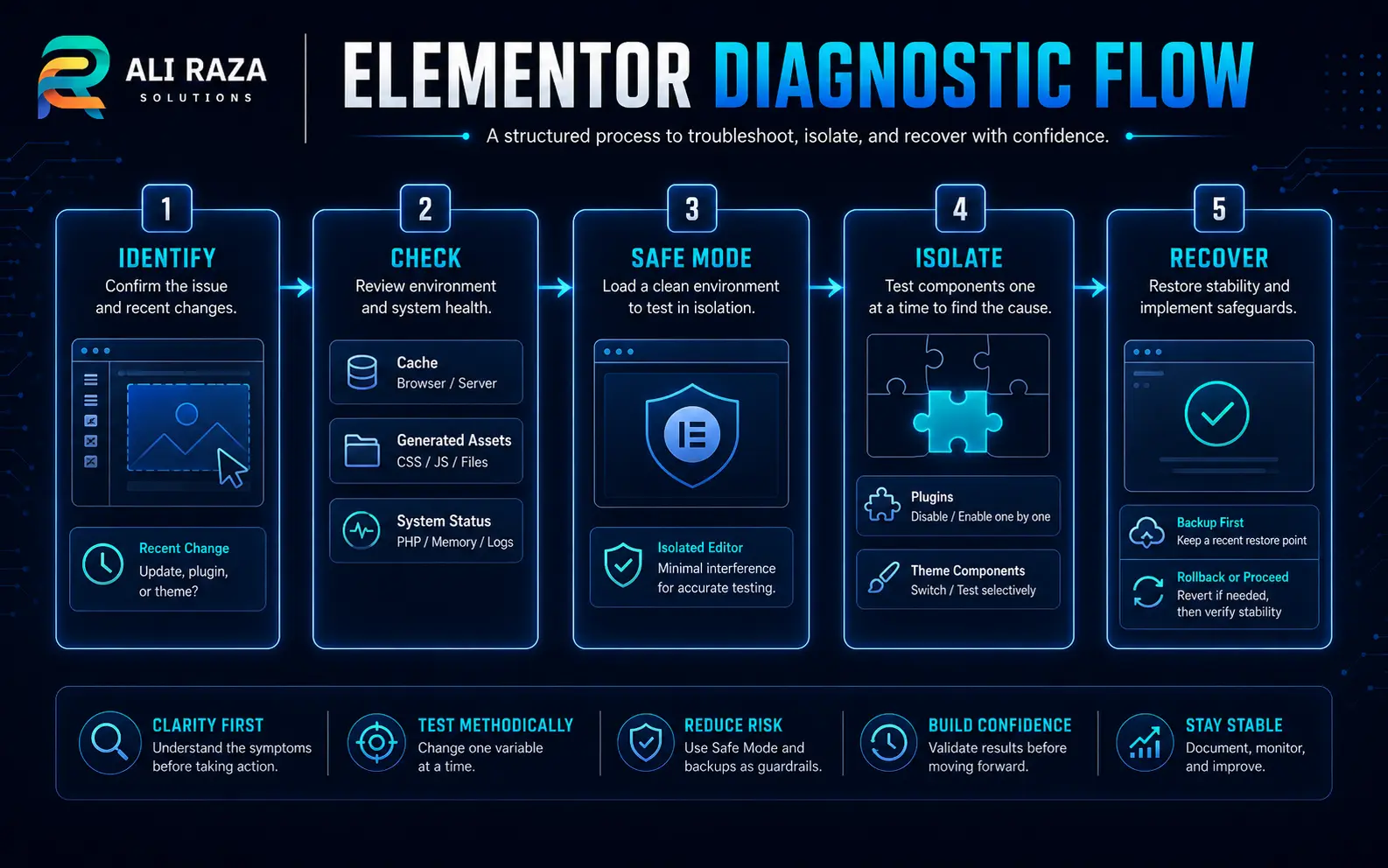
Identify the change
Record which WordPress, Elementor, Elementor Pro, theme or add-on version changed and when the symptom first appeared.
Verify a backup
Confirm that the database, files and configuration can be restored before deeper troubleshooting or version changes.
Clear stale assets
Clear relevant cache layers and use Elementor’s Clear Files & Data tool when old generated styling may be involved.
Use Safe Mode
When the editor will not load, Safe Mode can help separate Elementor from theme and plugin interference.
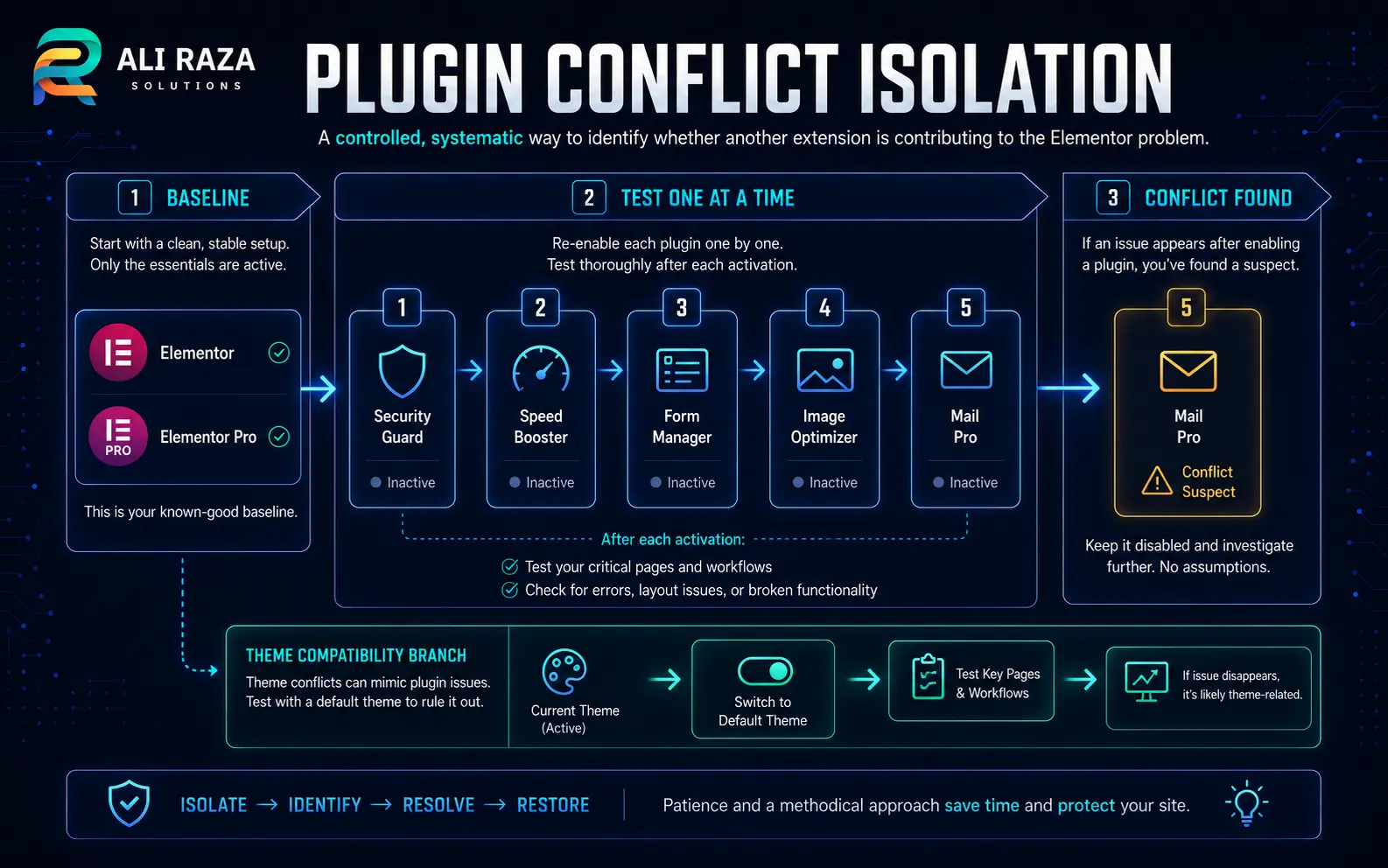
Isolate conflicts
Temporarily remove third-party variables and reintroduce components one at a time while repeating the same test.
Test the theme
Use a known-compatible theme in a safe test environment if the evidence points toward theme-level interference.
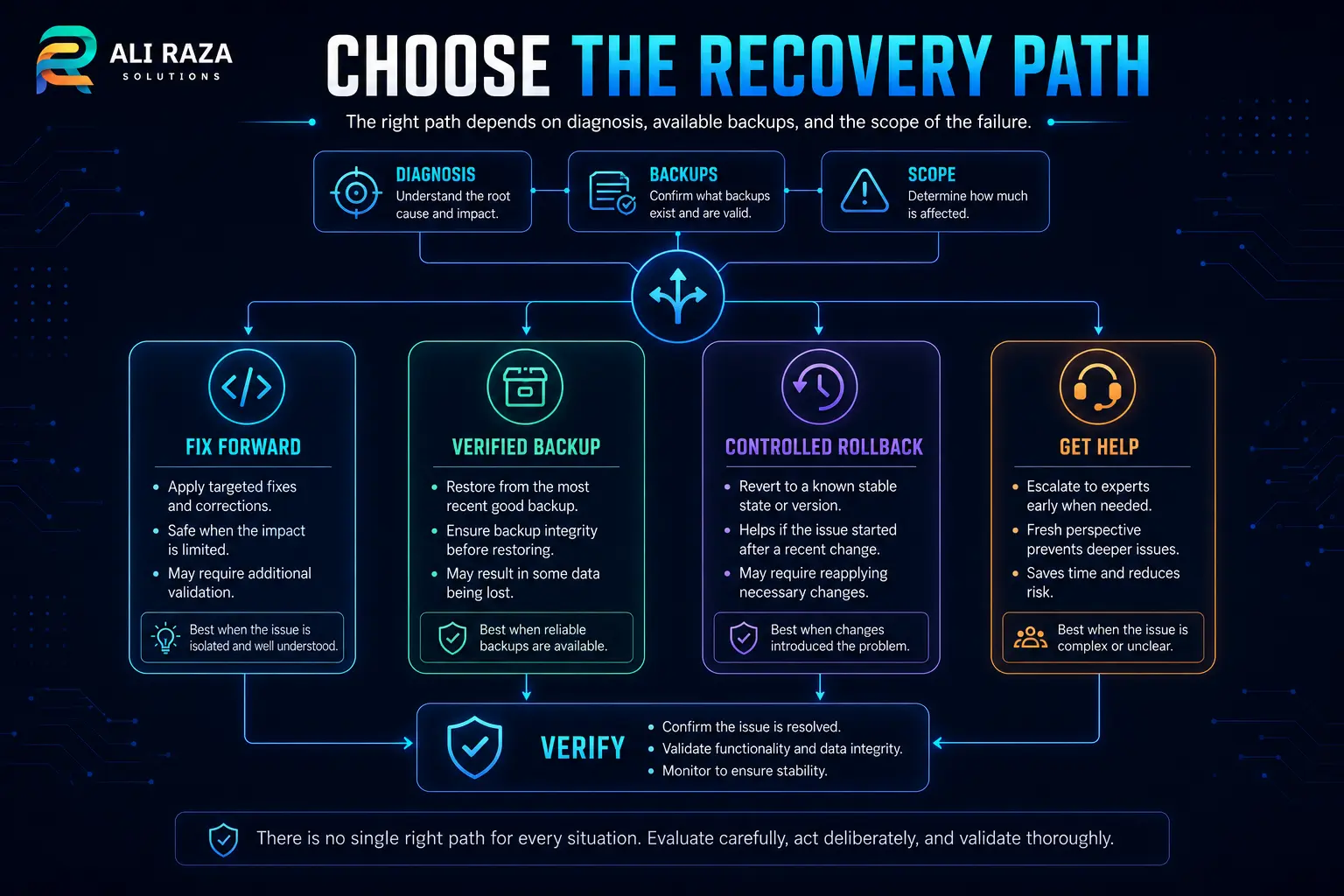
Choose recovery
Fix forward when the cause is clear; otherwise evaluate a verified restore, controlled rollback or professional support.
Diagnose What “Broken” Actually Means
When Elementor broken after update describes the timing but not the symptom, define the failure first. The editor may be stuck loading, the widget panel may be blank, one widget may fail, the frontend may lose styling, responsive spacing may change, or WordPress itself may show a fatal error.
Record the affected URLs, whether the problem is in the editor or frontend, the exact update history, the browser used, and any visible error message. This gives you a baseline for every later test.
| Symptom | Useful first checks | Avoid assuming |
|---|---|---|
| Editor does not load | Safe Mode, plugin/theme conflicts, version compatibility, browser console and server logs | That the frontend is also broken |
| Styles or spacing disappeared | Clear Files & Data, cache layers, theme CSS and recent add-on changes | That page content was deleted |
| One widget fails | Widget source, add-on compatibility and page-specific errors | That Elementor core caused it |
| Whole site errors | PHP/server logs, recent plugin/theme updates and compatible versions | That cache clearing alone will solve it |
| Only mobile layout changed | Responsive settings, generated CSS, theme CSS and design edits | That rollback is automatically required |
If the Elementor broken after update incident affects a live business site, preserve this short incident note before asking your host or a developer to help. Ali Raza Solutions’ website maintenance services cover WordPress updates, backups and troubleshooting for sites that need ongoing technical support.
Use Safe Mode to Narrow Down Plugin and Theme Conflicts
For an Elementor broken after update editor issue, Elementor describes Safe Mode as a diagnostic environment that loads the Elementor Editor without the site’s active plugins or theme. Safe Mode affects the logged-in user while using the editor; Elementor states that it does not change what normal site visitors see.
If Elementor broken after update disappears in Safe Mode, that is evidence that another component may be involved. It does not by itself identify which plugin, theme or custom code is responsible.
Establish the baseline
Confirm the exact failure before deactivating anything, so you know what a successful test looks like.
Remove variables
Use Safe Mode or controlled deactivation to see whether the editor becomes stable.
Reintroduce one item
Reactivate one plugin at a time and repeat the same test after every change.
Confirm the result
Reproduce the issue before naming a conflict, then check for an update or support path for the affected component.
Elementor’s current troubleshooting guidance says that when the editor works in Safe Mode, you can temporarily deactivate all plugins except Elementor and Elementor Pro, then reactivate them one by one until the problem returns. See the official Safe Mode documentation and editor troubleshooting guide.
Check Cache, Theme Code and Elementor-Generated Files
If Elementor broken after update mainly means missing styling or old frontend changes, stale generated files and cache layers deserve attention. Elementor’s current Clear Files & Data tool exists specifically to refresh files and data that may be outdated after design, theme or plugin changes.
For an Elementor broken after update styling issue, clear only the cache systems you actually use: browser cache, a WordPress caching plugin, host/server cache or CDN cache. If the same problem immediately returns, keep investigating instead of treating cache clearing as proof of the root cause.
Test the theme only when the evidence points there
Elementor’s editor troubleshooting guide includes testing with a compatible theme when page-layout or theme issues are suspected. A temporary theme switch can alter a live site, so perform that test on staging or during a controlled maintenance window.
For the current procedure, see Elementor’s official Clear Files & Data guidance.
Check Elementor and Elementor Pro Version Compatibility
An Elementor broken after update case can be caused by related components running incompatible versions. Elementor’s current editor troubleshooting documentation specifically tells users of Elementor and Elementor Pro to make sure those versions are compatible.
For an Elementor broken after update compatibility check, review WordPress, Elementor, Elementor Pro, important Elementor add-ons, the active theme and the site’s PHP environment. Compare the symptom with the update history instead of updating every remaining component at once. A controlled sequence makes it easier to know which change fixed or reintroduced the failure.
When the website needs development-level diagnosis, Ali Raza Solutions also provides professional WordPress development for custom code, plugin integrations and structured website repairs.
Should You Roll Back When Elementor Is Broken After an Update?
For an Elementor broken after update recovery decision, rollback can be useful when a recent Elementor release is strongly linked to the failure and you need a temporary stable state, but it should not be an automatic first step. Elementor provides built-in Version Control tools for rolling back Elementor or Elementor Pro and explicitly recommends backing up first.
| Situation | Recovery path | Reason |
|---|---|---|
| Clear conflict with an add-on and a compatible update exists | Fix forward | Removes the known incompatibility without returning the whole site to an older state. |
| Known-good complete backup exists and several changes failed | Consider verified restore | May provide a cleaner recovery point when the affected state is complex. |
| Failure began immediately after a specific Elementor release | Consider controlled rollback | Can help test whether the version change is directly involved. |
| No backup, admin unavailable or critical business functions fail | Get qualified help | Further trial and error can increase downtime or complicate recovery. |
If Elementor broken after update is clearly tied to one release, review Elementor’s official Version Control rollback guide. After any rollback, retest the editor, frontend, forms, navigation, responsive layout and other site-specific functions before declaring the problem resolved.
What If WordPress Admin Is Broken Too?
If Elementor broken after update has escalated into a fatal error or an inaccessible WordPress dashboard, editor-level tools may no longer be enough. Hosting logs, recovery mode, SFTP/SSH access or host support can be needed to identify the failing component and regain administrative access.
Do not delete random plugin folders or restore an unverified backup simply to make the visible error disappear. Preserve the error message, note the update sequence and use the least destructive recovery route available.
Prevent the Next Elementor Update Problem
The best time to reduce an Elementor broken after update incident is before the next update reaches production. A repeatable update process shortens diagnosis and gives you a clean recovery point.
Maintain verified backups
Keep current copies of the database, files and configuration, and know how restoration actually works.
Use staging
Test WordPress, Elementor, Elementor Pro, theme and important add-on updates away from live visitors first.
Check compatibility
Review release notes and related component requirements before applying several major updates together.
Test key journeys
After updating, check priority pages, forms, menus, mobile layouts, ecommerce flows and the Elementor editor.
Document changes
Record versions and update times so a later failure can be traced to a smaller set of variables.
Schedule maintenance
Routine updates, backups and post-update QA make emergency troubleshooting easier to manage.
WordPress recommends having a current backup before plugin updates. See the official WordPress plugin-management documentation. For ongoing updates and monitoring, see Ali Raza Solutions’ WordPress maintenance service.
Frequently Asked Questions About Elementor Broken After Update Problems
These answers cover the most common decisions during post-update Elementor troubleshooting.
Why is Elementor broken after an update?
The update may have exposed a plugin or theme conflict, changed compatibility between Elementor and Elementor Pro, refreshed generated assets, or interacted with caching or the server environment. Identify the exact symptom and recent changes before deciding on a fix.
How do I fix Elementor after a WordPress update?
Verify a backup, reproduce the symptom, clear relevant caches and generated files, test Safe Mode, isolate plugins and the theme, and review version compatibility. Choose rollback or restore only when the evidence supports that recovery path.
Does Elementor Safe Mode affect website visitors?
Elementor states that Safe Mode affects logged-in users while they are using the Elementor Editor and does not affect normal site visitors or other logged-in users. It is intended to isolate editor loading from themes and plugins.
How do I find an Elementor plugin conflict?
Establish the failure, temporarily remove third-party plugins in a safe test environment, then reactivate them one at a time while repeating the same test. Confirm the issue returns before treating the most recently activated plugin as the likely conflict source.
Should I roll back Elementor after an update?
Only when the recent version is strongly connected to the failure and rollback is the appropriate temporary or diagnostic step. Back up first, record the versions involved and test the full site after the rollback.
Why is Elementor loading but the page styling is broken?
Generated files, browser or server cache, CDN cache, changed theme CSS or an add-on can make the frontend display differently even when the editor loads. Clear relevant generated files and caches, then investigate any issue that returns.
Can different Elementor and Elementor Pro versions cause errors?
Yes. Elementor’s current troubleshooting guidance warns that newer and older Elementor/Elementor Pro versions can conflict. Check both installed versions and follow the current compatibility guidance.
How can I prevent Elementor update issues?
Keep verified backups, test important updates on staging, review compatibility, update in a controlled sequence, and run post-update checks on the editor, frontend, forms, navigation and mobile layouts.
About Ali Raza Solutions
Ali Raza Solutions provides WordPress development, website maintenance, troubleshooting, SEO and digital services for businesses in the United States, United Kingdom and international markets.
This article provides general WordPress troubleshooting information. Back up important websites before changing plugins, themes, versions or server configuration, and use qualified support when downtime or data loss would create significant business risk.